Generate an STL from a digital elevation model in QGIS. Explore the parameters shared by Free and PRO and PRO’s additional tools.
Step 1
Select the DEM
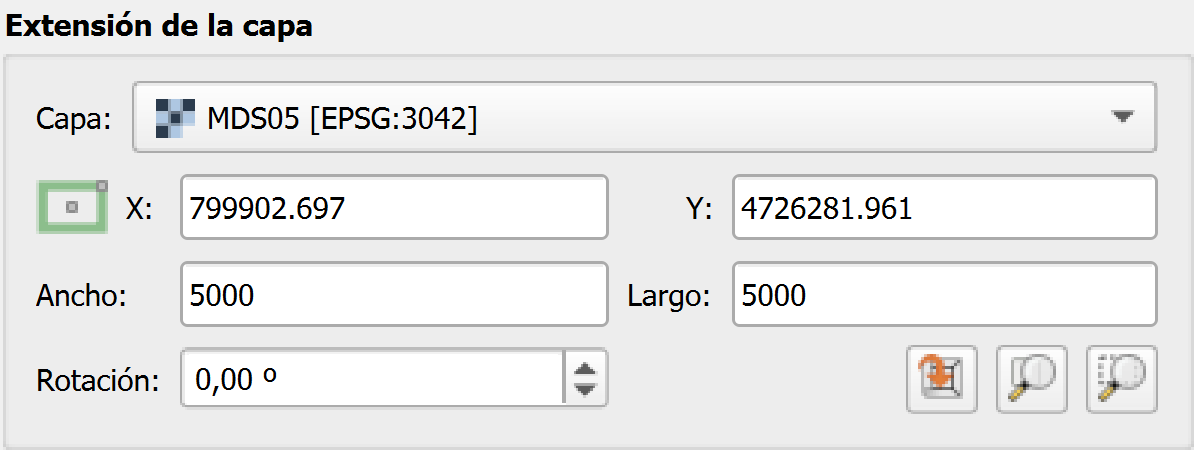
Load the raster in QGIS and select it under ‘Layer’. Check its coordinate reference system and elevations before proceeding.
DEM selected under ‘Layer’, with its EPSG:3042 reference system and extent controls.
Step 2
Define the extent
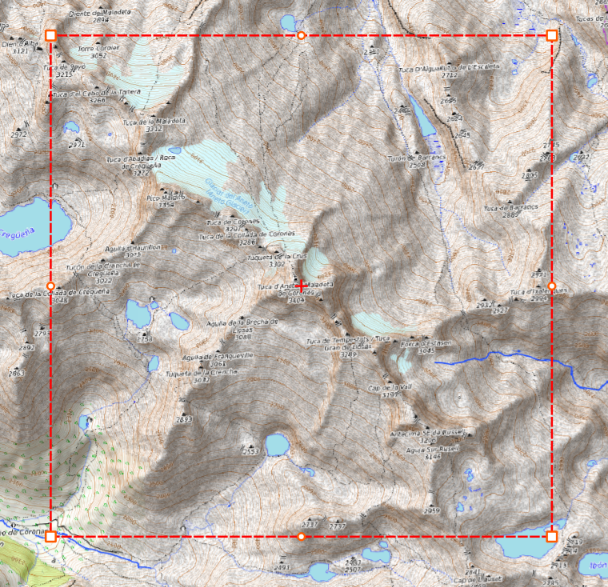
Define a rectangle within the DEM using coordinates, a layer’s extent or a canvas selection. PRO lets you edit corners and centre and rotate the area interactively.
The complete selected area in QGIS, showing all four corners, side handles and the centre marker.
Step 3
Dimensions and scale
Enter width, length in millimetres or scale; the other values are calculated. PRO can lock the scale when defining the extent.
Scale lock (PRO)
Once you have defined an area, choose the scale and click the ‘Fix scale’ padlock to its right. With the lock enabled:
Changing the model’s width or length in millimetres adjusts that dimension of the selected area. The scale, other dimension, rectangle centre and rotation are preserved.
Changing the area’s extent on the map or through its coordinates and dimensions recalculates the model’s width and length in millimetres while keeping the scale.
Choosing a different scale while the padlock is active keeps the model’s dimensions in millimetres and resizes the area covered on the map.
Example. At 1:25,000 scale, a 150 × 150 mm model represents a 3,750 × 3,750 m area. With the lock enabled, changing only the width to 200 mm makes the area 5,000 × 3,750 m and the model 200 × 150 mm.
Disable the padlock to adjust the model’s size and scale while keeping the selected extent.
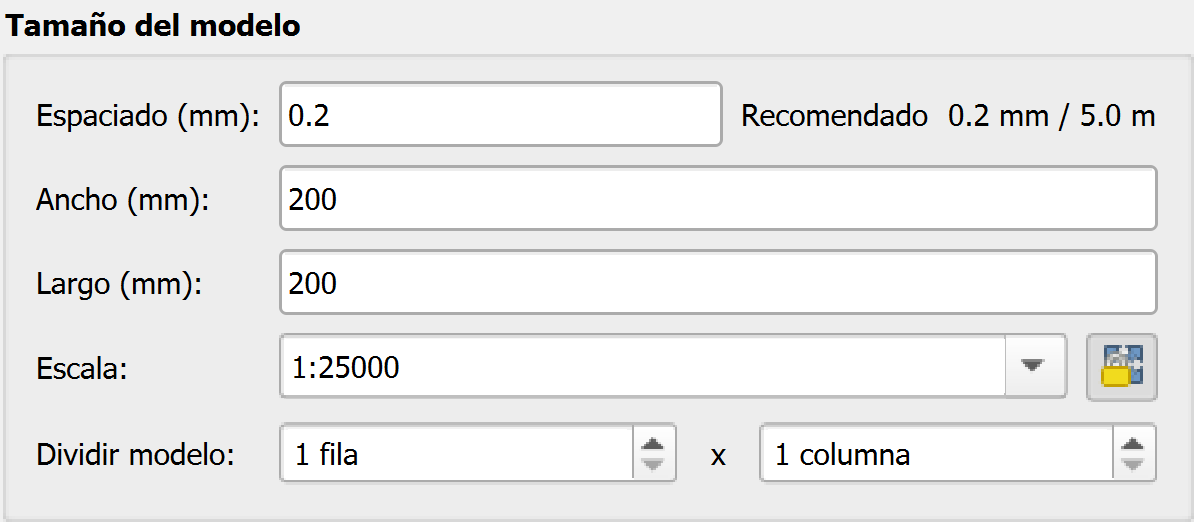
A 200 × 200 mm model at 1:25,000 scale, with PRO’s scale lock control.
Step 4
Mesh spacing
Spacing sets the distance between the points that form the terrain mesh. A smaller value generates more points and triangles and usually increases processing time, memory use and STL file size. A larger value simplifies the mesh but may lose small details.
Millimetres and map units
Enter the ‘Spacing (mm)’ value in model millimetres. The recommendation beside the field also shows the equivalent distance in map units, such as metres or feet, according to the QGIS canvas coordinate reference system.
Example. At 1:25,000 scale, 0.2 mm in the model corresponds to 5 m on a map whose units are metres. This is why the screenshot shows ‘0.2 mm / 5.0 m’. The distance represented by those 0.2 mm changes with the scale.
Choose the spacing to suit the DEM resolution and the detail your printer can reproduce. Sampling more finely than the DEM’s available detail does not create new terrain information. Try a small area before generating a large model.
Mesh spacing of 0.2 mm in the model. At 1:25,000 scale, the recommendation also shows its equivalent of 5 m in map units.
Step 5
Split the model
Set the number of rows and columns to divide the model into equal parts for printing separately. A setting of 1 row × 1 column keeps a single piece. Use splitting when the complete model exceeds the print bed size and check the dimensions of each part.
Row and column splitting controls. A setting of 1 row × 1 column keeps the model in a single piece.
Step 6
Vertical exaggeration and terrain inversion
This factor changes terrain height. Use 1 to preserve vertical proportions; increase it to emphasise elevation differences.
Terrain inversion
Enable ‘Terrain inversion’ to reverse the relief: high areas become low and vice versa. You can combine this option with vertical exaggeration to adjust the height differences. Check the base elevation, base thickness and, in PRO, the preview before exporting.
Vertical exaggeration set to 1.00, with ‘Terrain inversion’ unchecked in this example.
Step 7
Base elevation and height
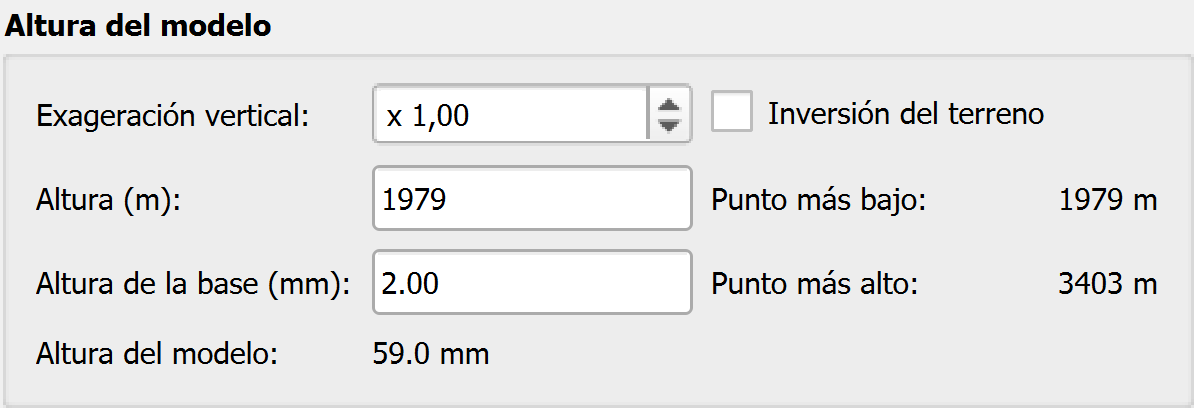
Base elevation determines where terrain representation starts. Base height sets physical thickness. Check the minimum and maximum elevations and final model height.
Base elevation of 1,979 m, a 2 mm base and a total height of 59.0 mm, alongside the area’s minimum and maximum elevations.
Step 8
Save and restore parameters
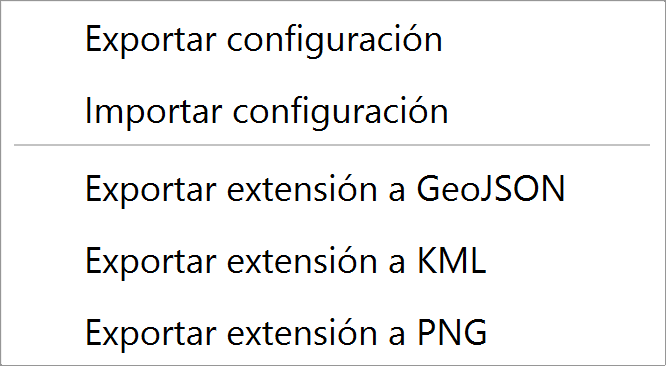
Free and PRO can export generation parameters and import them later. Keep the original DEM and QGIS project as well so you can repeat the work.
PRO’s ‘Settings’ menu, with options to export and import settings and export the extent.
Step 9
Preview in PRO
Click ‘Preview’ to open the 3D viewer and inspect the terrain, base and separate pieces before exporting. Its controls let you examine the model from different angles. This tool is available in PRO; Free can export without this viewer.
Viewer options
The vertical toolbar on the left contains these options, from top to bottom:
Render model preview. The circular arrow calculates the preview using the current settings. Click it again after changing the area, scale, exaggeration, base or splitting. Generating a preview does not save an STL file.
Reset view. Fits the complete model in view and resets the camera position. Use it after rotating or zooming to recover an overview; it does not change the model settings.
Model wireframe. Shows or hides triangle edges so you can inspect the preview mesh. This changes its visual appearance without changing the configured spacing.
QGIS canvas texture. Applies the visible QGIS map layers to the terrain surface to help identify places and compare the relief with the map. You can turn it on and off. The texture is a visual reference and is not saved in the STL.
Navigating the model
Drag with the left mouse button to orbit the model, use the wheel to zoom in or out, and drag with the right button to pan. The X/Y/Z indicator helps you track the orientation. These movements change the view, not the model’s dimensions or scale.
Measurements and level of detail
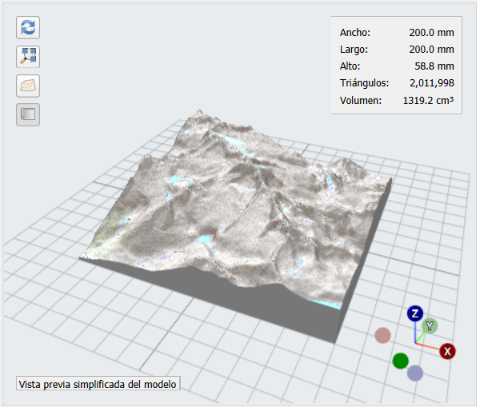
The information panel shows width, length and height in millimetres, the expected export triangle count and the geometric volume in cm³. If you have split the model, the pieces are displayed apart to make them easier to inspect; that separation is only visual.
The ‘Model preview simplified’ notice means the viewer is using a reduced mesh for inspection. Fine details may be omitted, and its measurements and volume are approximate. STL export uses the spacing you configured for the model.
Preview of the current model in PRO’s 3D viewer: terrain, base and dimensions before export.
Step 10
Area and additional outputs
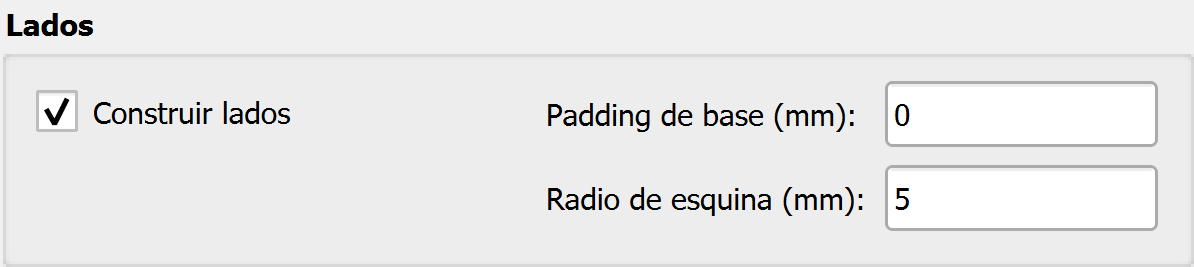
Both versions export the selected area to GeoJSON. PRO adds KML and PNG, plus sloped side walls for thermoforming moulds. Choose these options to suit your manufacturing process.
PRO’s ‘Sides’ section, with ‘Build sides’ enabled and fields for base padding and corner radius.
Step 11
Export to STL
Select ‘Export to STL’ and save the binary file. Open it in your print preparation software to review size, orientation and separate pieces.
The ‘Export to STL’ button at the bottom of the plugin.